Best Ergonomic Office Furniture Features for Comfortable Work
A home office can look beautifully composed and still leave you reaching for the keyboard, rounding your shoulders or tilting your head toward a laptop. The best ergonomic office furniture features for comfortable work are not necessarily the most advanced or numerous. They are the features that let you fit the chair, desk, screen and accessories to your body and daily tasks.
Think of the workstation as a coordinated system. Your chair affects desk height, desk height affects keyboard position, and monitor placement affects how you hold your head and neck. The right arrangement should feel supported without forcing you into one rigid posture—and it should sit comfortably within the character of your home.
This guide explains how to assess a chair, choose a desk, position your monitor and refine the smaller details that make a home office easier to use throughout a working day.
Why Ergonomic Furniture Begins With Fit, Not Features
Ergonomics is the practice of fitting work, furniture and equipment to the person using them. In a home office, that means reducing awkward reaching, raised shoulders, bent wrists and prolonged static positions rather than searching for one universally correct posture.
A useful starting position is one in which your back is supported, your feet have stable support, your shoulders are relaxed and your elbows stay near your body. From there, you should be able to shift position, recline slightly, stand up and move throughout the day. A comfortable workstation supports variation instead of locking you into a single pose.
Your choices will depend on your main tasks, the time you spend typing, whether you use a laptop or desktop, how many monitors you need and how much space the room allows. A writer working on one screen may need a different desk depth from someone reviewing large spreadsheets across two monitors.
It also helps to distinguish four qualities that are often treated as the same thing:
- Comfort is how the furniture feels during use.
- Support is how well it helps you maintain a relaxed, stable position.
- Adjustability is how easily it can be fitted to your proportions and tasks.
- Appearance is how naturally it belongs in the room.
A chair with a long feature list is not automatically better than a simpler chair that fits your body well. Adjustability matters only when the controls are intuitive and the available range suits you.
The Most Important Ergonomic Office Chair Features
Your chair is the primary fit point in the workstation. Before choosing a desk, make sure you can sit comfortably with your feet supported, your lower back in contact with the backrest and your arms able to reach the work surface without lifting your shoulders.
For additional guidance, see OSHA’s computer workstation guidance, which covers the selection and arrangement of chairs, desks, keyboards, monitors and other workstation components.
Adjustable Seat Height
Seat-height adjustment should allow your feet to rest securely on the floor or on a footrest, without pressure beneath your thighs. With the chair set correctly, your elbows should reach the keyboard while your shoulders remain relaxed.
A chair that is too low can make the desk feel high; one that is too high may leave your feet unsupported.
Lumbar Support That Meets Your Back
Lumbar support should meet the natural inward curve of your lower back. Adjustable height or firmness can be useful because that curve differs from person to person.
Sit fully back and check whether the support holds you comfortably without pushing you forward. If the support is fixed, test it in person or review the return policy carefully.
Suitable Seat Depth and Width
Seat depth affects whether you can use the backrest while leaving comfortable space behind your knees. If the seat is too deep, you may slide forward to avoid pressure at the backs of your legs, losing lower-back support. If it is too shallow, your thighs may not feel adequately supported.
You should be able to change position without feeling confined while remaining close enough to the desk for easy access to the keyboard.
A softened or waterfall-style front edge can reduce concentrated contact beneath the thighs, but it cannot compensate for an unsuitable seat height or depth.
Recline and Tilt Adjustment
A backrest that reclines or tilts lets you change your working angle during reading, video calls or thoughtful tasks.
The resistance should feel controlled rather than forcing you backward. Look for a mechanism that is easy to adjust while seated, since an awkward control is unlikely to become part of your routine.
Armrests That Support Without Obstructing
Adjustable armrests can support the forearms when they are low enough for your shoulders to remain relaxed. Height adjustment may be sufficient, while width or depth adjustment can help you bring your arms closer to the keyboard.
Armrests should not prevent the chair from moving close enough to the desk. If you prefer to move freely while typing, removable or minimal armrests may suit you better than oversized fixed supports.
A Stable Base and Suitable Movement
A stable base and smooth movement make it easier to reposition without twisting or reaching. Choose casters suited to your flooring and make sure the chair can move close to the desk without catching on a rug or nearby furniture.
For a practical chair test, sit all the way back, place your feet securely and bend your elbows as if typing. Adjust the armrests, recline slightly and confirm that the chair still lets you approach the desk comfortably.
How to Choose the Right Desk Height
There is no single desk height that works for every adult. The useful test is whether you can use the keyboard and mouse with relaxed shoulders, elbows near your torso and wrists in a relatively straight, neutral position.
Set the chair first, then adjust the desk or keyboard surface to meet your seated elbow height. If the desk is fixed, a keyboard tray, different chair height or footrest may improve the fit, but check that each change preserves sufficient legroom.
Under-desk clearance deserves as much attention as surface height. Your thighs, knees and feet need room to move, and the chair should slide in without colliding with drawers, support panels or storage.
Avoid using the space beneath the desk as permanent storage if it restricts your legs. You can find additional practical information in OSHA’s desk and work-surface guidance.
A sit-stand desk can help you vary position and reduce time spent seated, but standing is not automatically ergonomic. The keyboard, mouse and monitor still need to be positioned for relaxed shoulders and a comfortable line of sight.
Research has not established one ideal sit-to-stand schedule or definitive long-term outcome, so treat height variation as one tool rather than a solution on its own.
Before buying, test the desk with the equipment you actually use. Check the adjustment range, dimensions, return policy and, where applicable, the desk’s weight limit.
A surface that feels generous when empty may become crowded once you add a monitor, laptop, notebook, lamp and writing space.
A fixed-height desk can work well when its proportions suit you and the chair completes the fit. Adjustable height is helpful, but it should not outweigh a well-sized surface, clear legroom and a design that works in the room.
How to Position Your Monitor
Place the primary screen directly in front of you, with the top of the monitor at or just below eye level as a starting point. Fine-tune from there based on screen size, text scaling, visual needs and the posture you naturally use for the task.
The goal is to see the screen without tipping your head upward, leaning toward the display or holding your neck in an uncomfortable position.
OSHA identifies at least 20 inches as a minimum reference for monitor distance. It should not be read as a universal viewing-distance rule. The appropriate distance depends on screen size, text size, visual needs and personal comfort.
A monitor that sits too low may encourage a forward head position for some users, while one that sits too high may encourage neck extension.
A stand, riser or adjustable arm can help you change height and depth. For purchase guidance, confirm that the accessory is stable and compatible with the monitor’s weight, mounting pattern and desk construction.
For two monitors, center the screen you use most often directly in front of you. If you use both equally, centering the space between them may be more practical, with the screens angled slightly toward you.
Avoid placing your primary display off to one side for long periods if doing so causes repeated neck or trunk rotation.
Laptops create a familiar compromise: raising the screen can make the built-in keyboard too high, while leaving the keyboard at desk level usually means looking down.
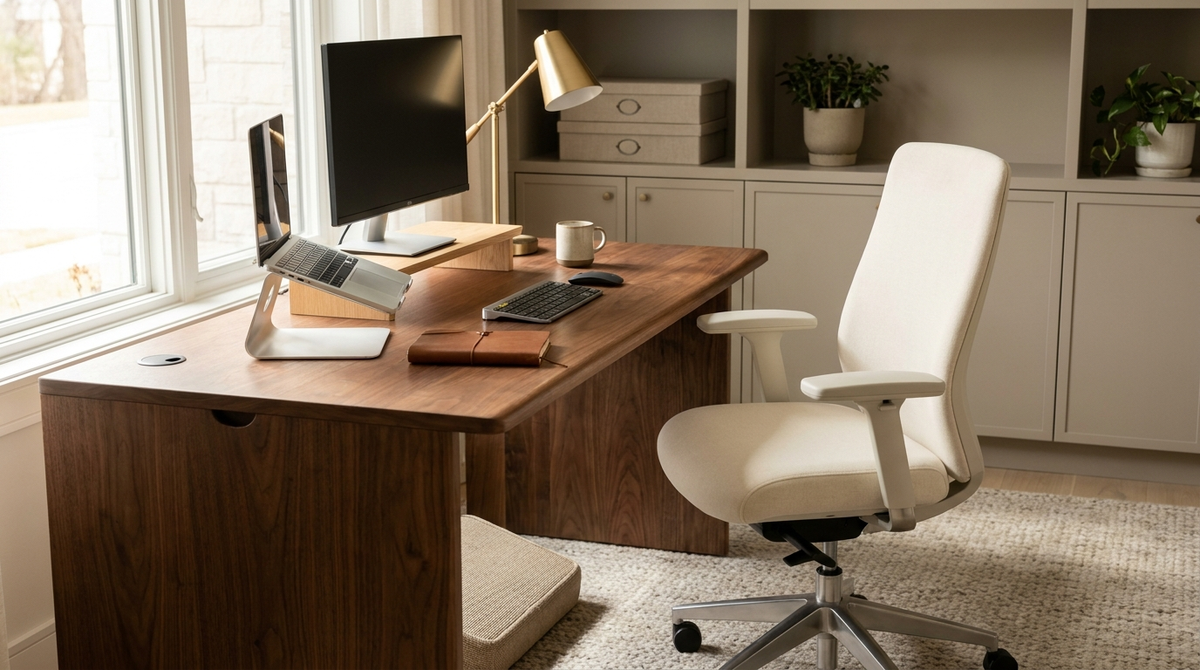
For longer sessions, place the laptop on a stand or riser and use a separate keyboard and mouse. An external monitor can provide the same flexibility when your work requires a larger display.
Keyboard, Mouse and Foot Support
A well-fitted chair and desk can still feel wrong if the input devices are too far away.
Keep the keyboard and mouse close enough that your elbows remain near your body and your shoulders stay relaxed.
OSHA provides separate guidance for keyboard positioning and mouse and pointing-device placement.
Your wrists should remain relatively straight rather than sharply bent upward, downward or sideways.
Keep the mouse close to the keyboard, and place frequently used items—such as a notebook, phone or reference material—within your primary reach zone. This reduces unnecessary stretching during ordinary tasks.
For a broader overview, OSHA’s workstation components guidance explains how the different elements of a computer workstation should work together.
A keyboard tray is useful only when it improves the overall arrangement. Check that it supports both the keyboard and mouse, allows a suitable height and tilt, and does not interfere with your thighs or chair movement.
A tray that separates the mouse too far from the keyboard may create a new reaching problem.
A footrest can be valuable if raising the chair is necessary to match a fixed desk. It should provide stable support without forcing your knees into an uncomfortable position. The aim is to give your feet a reliable base while leaving room to shift.
Hard or sharp desk edges can create concentrated pressure where your forearms contact the surface. A softened edge, appropriate desk depth and a clear area for your arms can make the work surface easier to use without adding visual bulk.
Making Ergonomic Furniture Work in a Design-Conscious Home Office
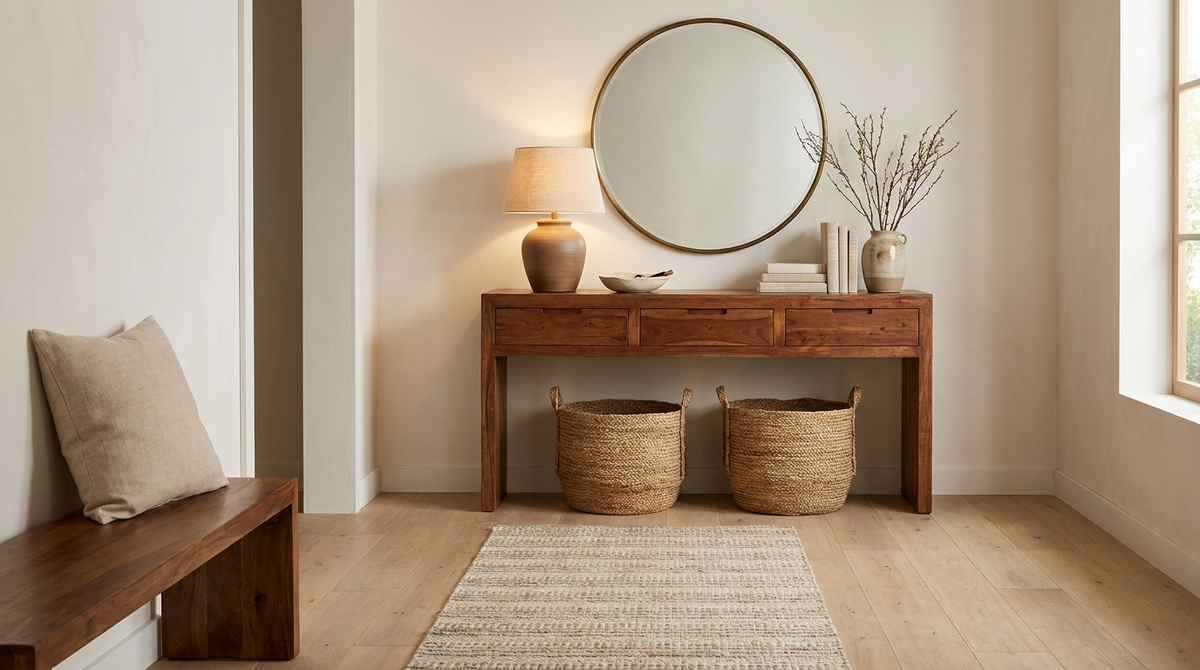
Ergonomic furniture does not need to resemble equipment from a commercial office.
In a residential room, proportions, material, storage and visual weight matter alongside adjustment ranges. A desk that is technically adjustable but too deep for the room may restrict circulation; a beautiful desk with no clear legroom may be frustrating to use.
Start with the room’s scale. Leave enough space for the chair to move back and for you to stand comfortably.
If the office shares space with a guest room, living area or bedroom, considered storage can keep paperwork and accessories contained without filling the entire room.
Coordinate the chair and desk by function rather than insisting that every finish match. A refined wood desk can sit comfortably beside an upholstered or mesh chair if the proportions work together.
The chair needs to move close enough to the desk, and the desk needs to provide the clearance and surface depth the chair requires.
Natural wood can bring warmth to a home office, but assess the finish and care requirements for your routine. Consider sunlight, drinks, writing habits, pets and daily use.
Review construction details, care instructions, material disclosures and any applicable certifications rather than assuming that a material’s appearance guarantees a particular performance or environmental benefit.
Keep the primary work surface relatively clear. Cabinets, sideboards and other storage pieces can hold supplies nearby, but avoid placing bulky storage directly beneath the desk.
Organized cable routing should leave cables accessible for adjustment and maintenance without creating a visual tangle or trip hazard.
Lighting is part of the furniture arrangement, too. Position a task light for reading and writing without reflecting directly into the monitor, and place the screen out of strong daylight glare when possible.
A Quick Workstation Check
Once the furniture is assembled, use this short check before deciding that the setup is finished:
- Sit fully back in the chair and confirm that your lower back is supported and your feet have stable support.
- Check that your shoulders are relaxed, your elbows remain near your body and the keyboard and mouse are within easy reach.
- Position the primary monitor in front of you and near eye level without requiring your head to tilt up or down.
- Confirm that the desk leaves room for your thighs, knees and feet, and that the chair can move freely.
- Shift position and stand up to make sure the workstation allows regular movement.
Repeat the check after several ordinary work sessions.
A setup can feel comfortable for five minutes and less successful after a morning of email, a video call and focused screen work. Notice which adjustment you keep making; that pattern may show that the desk, chair or monitor needs a more fundamental change.
When Furniture Adjustments Are Not Enough
Ergonomic furniture can reduce awkward positions and improve the relationship between your body and your workstation, but it cannot diagnose or treat an injury.
Persistent pain, numbness, weakness or other concerning symptoms deserve guidance from an appropriate qualified health professional.
Comfort also depends on factors beyond furniture. Vary your tasks, take opportunities to move, manage screen glare and consider how lighting, workload and breaks affect the way you sit.
A supportive chair cannot compensate for every environmental or working-pattern issue.
Choose the Complete Setup, Not a Single Feature
The best ergonomic office furniture features for comfortable work are the ones that work together: a chair that fits your body, a desk that meets your seated working position, a monitor at a workable eye line and accessories that keep your hands and feet supported.
A standing desk or highly adjustable chair can be useful, but neither should be chosen in isolation.
Use this order when making decisions: fit the chair, match the desk to your elbows and legroom, position the monitor, then refine the keyboard, mouse, foot support, lighting and storage.
Before selecting a product category, evaluate the complete chair-desk-monitor relationship in the room where you will use it.
If you are furnishing the room around a warm, residential look, explore Mercer & Gray’s solid wood writing desks and tables for pieces that can bring warmth, character and practical workspace to your home office.
Choose each piece for the way it fits your room and routine, then let the ergonomic adjustments complete the arrangement.